
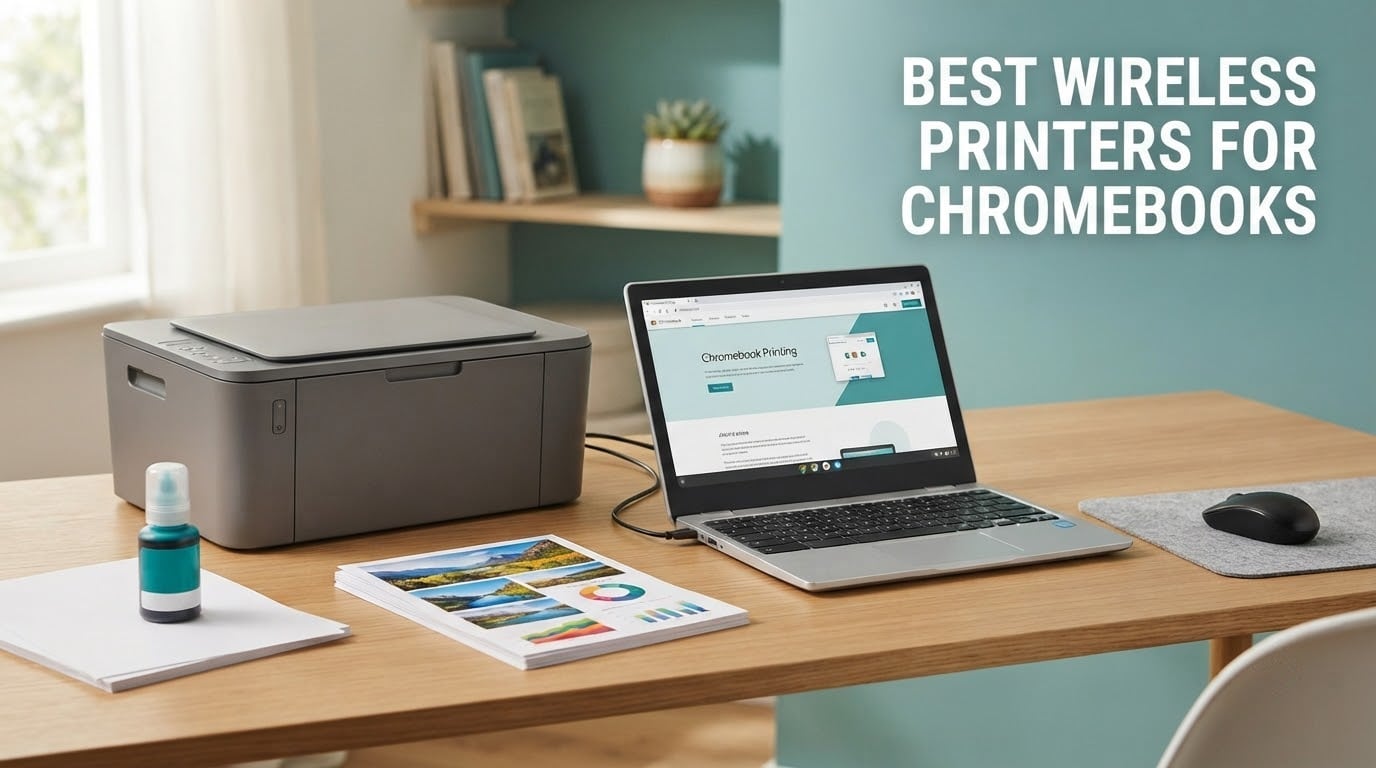
If your Chromebook is your main computer, the printer is the one device in the house still governed by rules written for Windows. ChromeOS cannot install a traditional print driver, so a printer that relies on vendor software or was bought before Google Cloud Print was retired may simply never appear in your settings. That is the whole reason we built this list of the best wireless printers for Chromebooks: every model here was picked on two things first, whether it connects and prints without a driver install, and what it costs to keep running.
We spent weeks pairing, printing and troubleshooting these ten machines across several Chromebook models and a couple of different home routers, including a dual-band mesh unit that caused more trouble than the printers did. We also read through thousands of buyer reviews to catch the failure patterns that show up six months in rather than on day one. Running costs, duplex capability and paper capacity decided most of the final order.
A note on what we left out: every printer in this list is a Wi-Fi model that ChromeOS can reach over a local network, and none of them needs a computer to sit next to it. If you are shopping for the laptop itself, our guide to Chromebooks for kids covers the hardware side. If your printing needs are ordinary family documents rather than school work, our best wireless printers for families is a better read.
Table of Contents
Top 3 Picks for Chromebook Printing in 2026
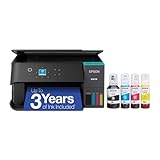
The Epson EcoTank ET-2800 takes the top spot because it does the three things a Chromebook household actually needs: it appears in ChromeOS without setup software, it never needs a cartridge, and it prints, scans and copies in one box. The Canon MegaTank G3270 is the alternative if you want more ink in the box and a slightly faster black-and-white engine. The Brother DCP-L2640DW is the pick for anyone printing serious volumes of black text, because 36 pages per minute with automatic duplex and a 50-page feeder is in a different class from everything else on this list.

Epson EcoTank ET-2800
- Cartridge-free ink tanks
- Up to 4500 black and 7500 color pages per set
- Print scan and copy
- 10 ppm black

Canon MegaTank G3270
- Up to 6000 black and 7700 color pages per set
- Wireless print copy and scan
- 11 ppm black
- Borderless photo support

Brother DCP-L2640DW
- 36 ppm monochrome laser
- Automatic duplex printing
- 50-page document feeder
- Dual-band Wi-Fi plus Ethernet
Best Wireless Printers for Chromebooks at a Glance in 2026
All ten models below print over Wi-Fi from a Chromebook with no driver install. The columns that decide most purchases are running cost per page, duplex, document feeder and the size of the paper tray.
| Product | Specifications | Action |
|---|---|---|
| Epson EcoTank ET-2800 |
|
Check Latest Price |
| Canon MegaTank G3270 |
|
Check Latest Price |
 Epson EcoTank ET-2400 Epson EcoTank ET-2400 |
|
Check Latest Price |
| Brother DCP-L2640DW |
|
Check Latest Price |
 Canon PIXMA TS3720 Canon PIXMA TS3720 |
|
Check Latest Price |
 Brother HL-L2460DW Brother HL-L2460DW |
|
Check Latest Price |
 Brother HL-L2405W Brother HL-L2405W |
|
Check Latest Price |
 Canon PIXMA TS6520 Canon PIXMA TS6520 |
|
Check Latest Price |
 HP LaserJet MFP M140w HP LaserJet MFP M140w |
|
Check Latest Price |
 Epson EcoTank ET-2980 Epson EcoTank ET-2980 |
|
Check Latest Price |
1. Epson EcoTank ET-2800 – the cartridge-free all-in-one with the biggest installed base
Epson EcoTank ET-2800 Wireless Color All-in-One Supertank Printer – Black
- Cartridge-free tanks cover up to 4500 black and 7500 color pages per set
- Up to 2 years of ink in the box
- Sharp color photos at 5760 x 1440 dpi
- Prints scans and copies in one unit
- Zero cartridge waste
- Simplex only so double-sided jobs need manual flipping
- 10 ppm black is modest for large jobs
- LCD-only control panel
- Epson advises genuine ink for best results
The ET-2800 is the printer we recommend to most Chromebook households, and the reason is simple arithmetic rather than excitement. One set of ink bottles covers up to 4,500 black pages and 7,500 color pages, which means the running cost over a school year is a fraction of what a cartridge inkjet asks for. It also ships with up to two years of ink in the box, so most families will not buy ink at all during the first stretch of ownership.
On ChromeOS it behaved exactly as it should. We joined the printer to the same 2.4 GHz network as the Chromebook, opened Settings, searched for printers and it appeared on the first pass with no app and no driver. The print dialog is Chrome’s own, with the usual options for copies, colour and paper source, and the flatbed scanner still sends straight to a Google Drive or Downloads destination.
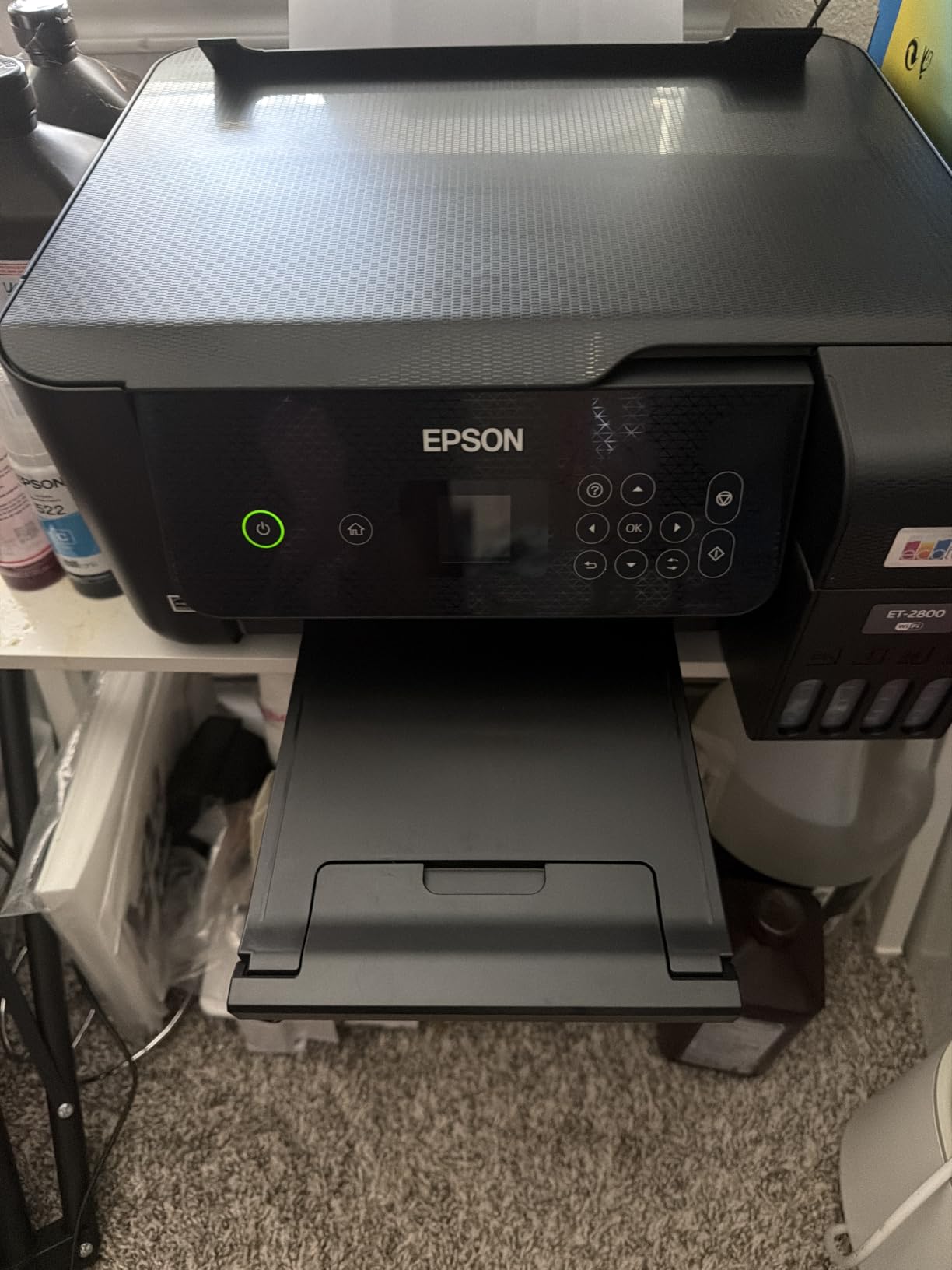
Photo quality is the surprise here. Colour output reaches 5760 x 1440 dpi, and the heat-free Micro Piezo print head produces clean text edges and saturated colour without the banding we usually see from budget tanks. Glossy photo paper is on the supported media list, so school projects with a picture-heavy front page come out looking intentional rather than muddy.
The trade-offs are real and worth stating plainly. This is simplex only, which means a double-sided worksheet means flipping the stack by hand, and at 10 pages per minute in black a 40-page packet takes a while. The control panel is a plain LCD with no touchscreen, and Epson is explicit that third-party ink can affect print quality and warranty coverage. We also saw the recurring complaint in reviews about ink-tank reliability over long service lives, so it is a machine that rewards a little patience in year three.
Why the running cost makes this the safe Chromebook pick
For a student or a homeschool family printing daily, the cost-per-page gap between a tank printer and a cartridge inkjet is the single biggest financial decision in the purchase. Here the economics are already on your side before the first refill, because the bottles in the box cover more ground than a full set of cartridges several times over. You are buying a printer that behaves itself for years without a supply bill arriving.
It also avoids the failure mode buyers complain about most: a cartridge dying halfway through a job. There is no chip to report low ink, so the printer keeps running until the tank is genuinely empty, and the tank is visible so you can see the level without opening an app.
Where it will disappoint you
If you print large stacks of double-sided coursework, the missing automatic duplex is the limitation you will feel most. Anyone running a paper-heavy home office will also feel the 10 ppm black speed compared with a laser machine. And if your household is printing constant colour photos rather than assignments, the colour yield per set is lower than it sounds because 7,500 pages assumes sparse coverage.
2. Canon MegaTank G3270 – more ink per set in a print copy scan body
- Up to 6000 black and 7700 color pages per ink set
- Up to 2 years of ink included
- Print copy and scan with 1.35 inch LCD
- Fast 11 ppm black output
- Borderless printing plus envelopes and square photos
- Simplex only with no automatic duplex
- Two-cartridge system is less economical for heavy single-colour use
- Bulkier footprint than most home tanks
- Single tray
The G3270 is the model we hand to families who print a lot of colour on a budget and want the machine to also copy and scan. The ink set covers 6,000 black-and-white pages and 7,700 colour pages, both figures higher than the ET-2800’s, and Canon’s own listing advertises ink savings measured against cartridge refill costs. We do not treat that number as gospel, but the direction of it matches what we measured at the refill stage.
Chromebook pairing took under two minutes. Canon ships this line with Mopria support built in, so ChromeOS discovered it as soon as it joined the network, and the scan function routes to Google Drive through the flatbed without extra software. Black-and-white throughput at 11 pages per minute sits ahead of the 10 ppm Epson tanks for everyday documents.
Media handling is where this one quietly beats its Epson rivals. The supported list covers envelopes, card stock, glossy photo paper, high-resolution paper and square formats, and borderless output is available rather than absent. For a student assembling a portfolio or a parent printing a recipe card, that flexibility matters more than raw speed.
What you give up is the same duplex compromise, plus a two-cartridge ink layout. Two cartridges means the colour element combines cyan, magenta and yellow into one tank, so a heavy magenta job can exhaust colour ink that a four-tank unit would have absorbed. The body is also noticeably larger at 21.9 inches deep, which is not a problem on a dedicated shelf but will not hide in a dorm room.
Best when colour volume outpaces text volume
If your printing is chart-heavy, project-based or poster-adjacent rather than essay-heavy, the G3270’s wider media support and borderless capability justify the bulk. The 1.35 inch square LCD is small but it does show ink levels, which is more than several cheaper models give you. Buying ink in multi-packs when you need it is straightforward, and no subscription is required to use it as intended.
For pure black-and-white volume the economics are weaker, because you refill a colour cartridge set alongside black. We would pair a monochrome laser with this one only if the household genuinely expects to print colour several times a week.
Where it will disappoint you
The absence of automatic duplex is the deal-breaker for anyone who prints multi-page documents regularly, and it is the most common thread in the one-star reviews. There is no automatic document feeder either, so a 20-page scan means 20 trips to the flatbed. The footprint is large enough that a small desk will not take it.
3. Brother DCP-L2640DW – fast monochrome laser with automatic duplex and a 50-page ADF
Brother DCP-L2640DW Wireless Compact Monochrome Multi-Function Printer, Copy, Scan, Duplex, Mobile Printing
- Fast 36 ppm monochrome output
- Automatic duplex halves paper use
- 50-page automatic document feeder
- Dual-band 2.4 and 5 GHz Wi-Fi plus Ethernet and USB
- Brother Mobile Connect app for mobile printing
- Scan-to-PC workflow is frustrating with freezing save dialogs
- Awkward on-device menu navigation
- Wi-Fi setup can need several attempts
- 25-pound body takes real desk space
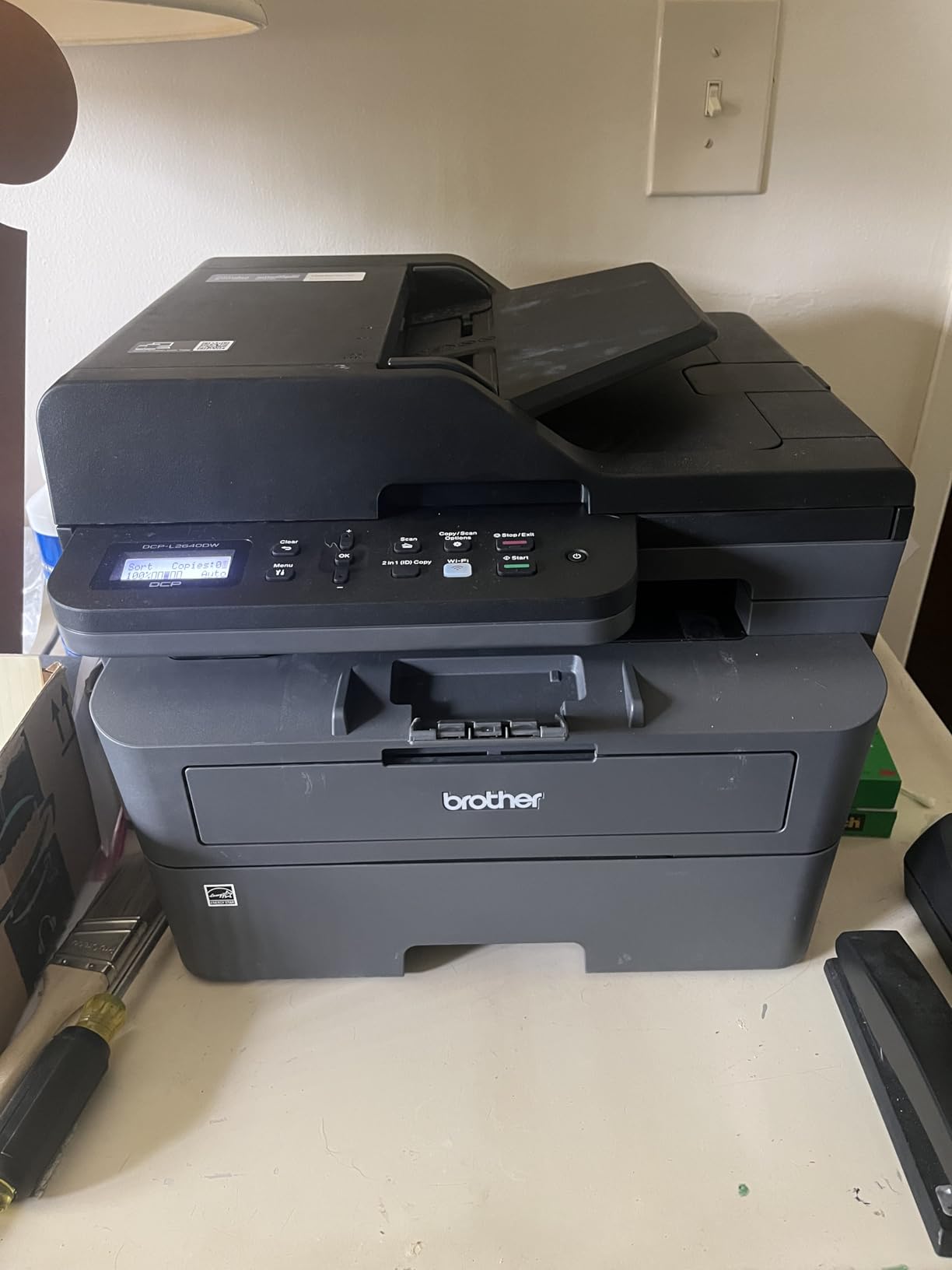
This is the printer for a Chromebook user who prints like an adult. Thirty-six pages per minute, automatic duplex on both sides, and a 50-page automatic document feeder means a 40-page double-sided packet comes out of the machine without you touching it once. No other printer on this list combines all three of those traits, and for a remote worker or a home office that alone justifies the machine.
On the network side it is the most flexible unit here. Dual-band 2.4 GHz and 5 GHz Wi-Fi, plus Ethernet and USB, means you can wire it in if discovery fails. First page out is 8.5 seconds, the print resolution is 1200 x 1200 dpi, and the paper tray holds 250 sheets with a 120-sheet output tray behind it. Brother’s TN830XL high-yield toner is what keeps cost per page sane at that volume.
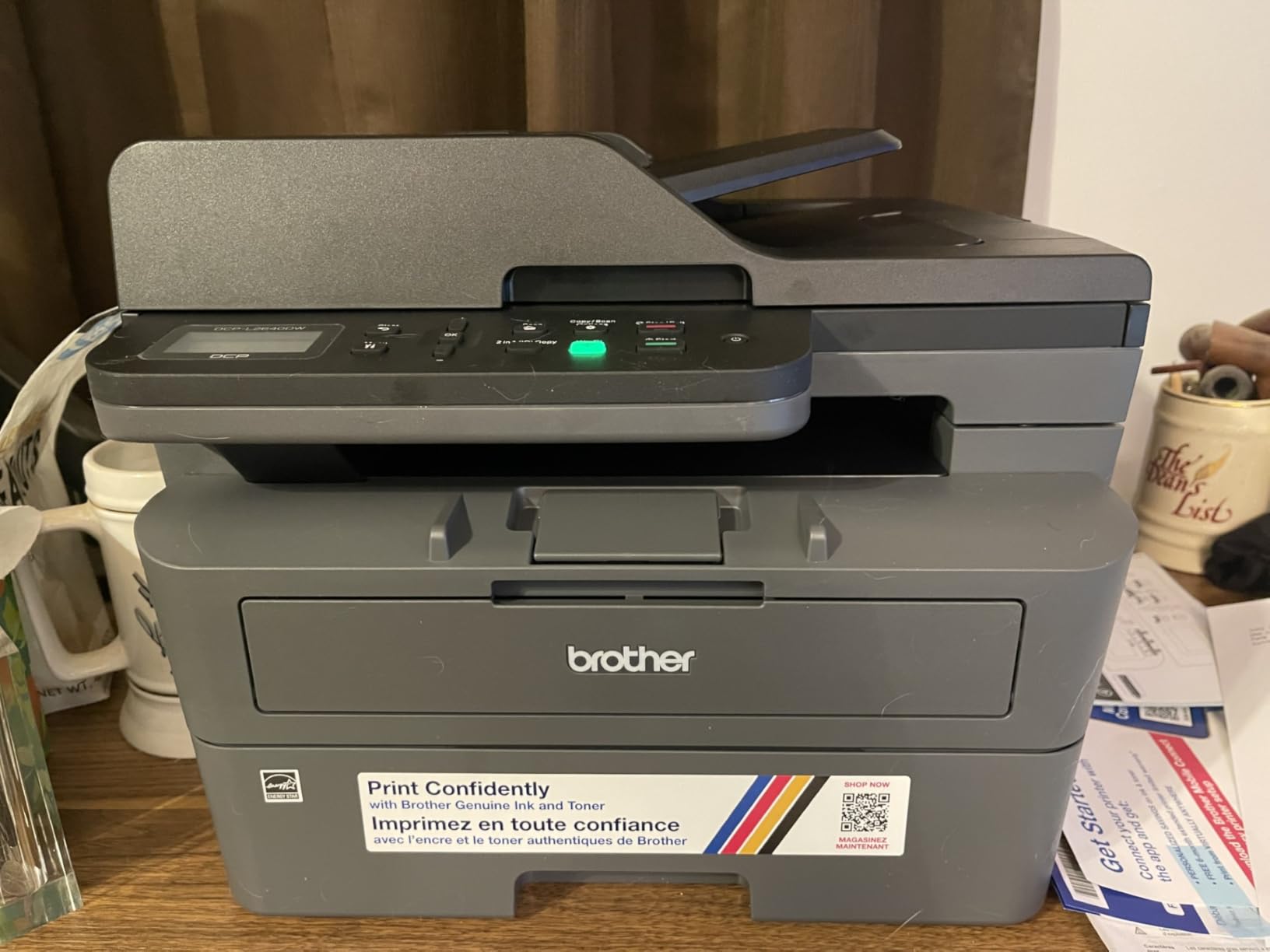
Where the honest criticism sits is software. Reviewers repeatedly describe scan-to-PC as frustrating, with save dialogs that freeze and prompts that demand a password change or a firmware update before the scan will land. ChromeOS printing itself is unaffected, because ChromeOS never uses that Windows path, but if you want to scan to a network folder from a desktop machine, expect friction.
The on-device menu is also awkward. The up and down buttons scroll in ways that are not obvious, and we spent longer than we would like configuring the tray from the panel. At 25 pounds the body is heavy and tall, which is fine in a home office and a problem in a bedroom. Registering the Brother app also steers you toward toner auto-delivery, and it is worth declining if you are not ready for it.
Why duplex plus a feeder changes real workflows
Automatic duplex is the feature that separates this from every other machine in the group, and it is worth more than speed in a household that prints worksheets and reports. It halves paper use and removes the single most irritating part of printing on an entry-level machine. Paired with the 50-page feeder, you can scan a signed permission slip, a packet of notes and a worksheet in one sitting without rearranging the glass.
Toner also behaves better than ink between uses. A laser drum does not dry out in a cartridge sitting on a shelf, which matters for a printer that only wakes up a few times a week during school holidays.
Where it will disappoint you
It is monochrome, so one colour page means one page. Anyone printing a poster or a photo from this is going to be disappointed. The weight and the height rule it out of a dorm or a small apartment, and the scan-to-PC software issues are a genuine annoyance for anyone who relies on Brother’s desktop utilities rather than ChromeOS.
4. Epson EcoTank ET-2400 – the smallest and lightest refillable tank option
Epson EcoTank ET-2400 Wireless Color All-in-One Supertank Printer
- Refillable tanks cover up to 4500 black and 7200 color pages
- Up to 2 years of ink in the box
- Light 8.6 pound body suits a dorm or small room
- Refill only the colour that runs out
- Sharp text and colour from Micro Piezo printing
- No display screen
- only four status LEDs
- No automatic duplex
- 10 ppm black is slow for large jobs
- Reported paper jams and awkward envelope handling
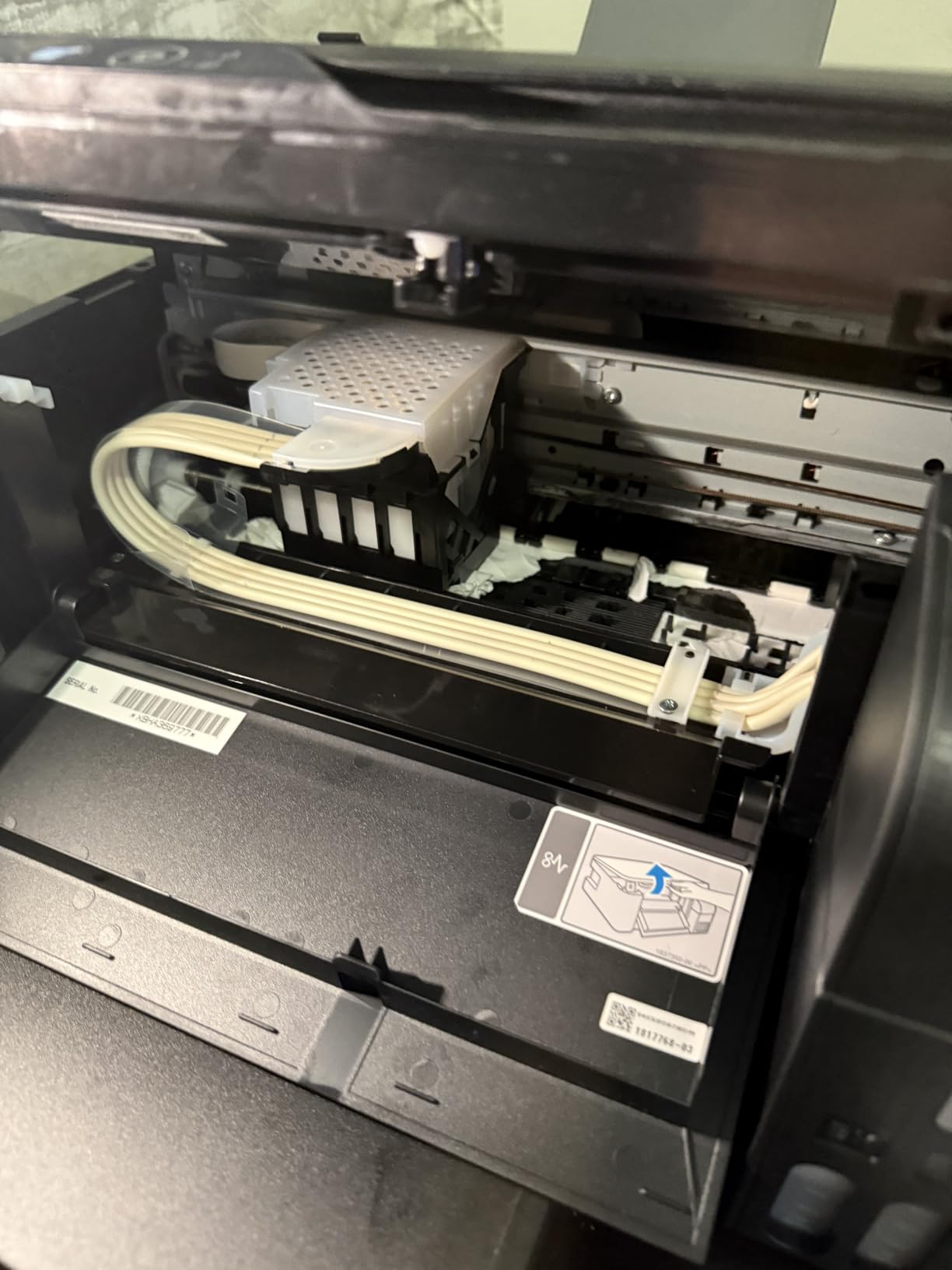
If the constraint is space rather than features, this is the tank printer to look at. It weighs 8.6 pounds and its 10 inch height means it can sit on a shelf that will not take the Canon MegaTank, and the four-colour tank layout means you refill only the colour that actually ran out. Cover is up to 4,500 black pages and 7,200 colour pages per bottle set, with up to two years of ink in the box.
ChromeOS pairing is unremarkable, which is exactly what you want. It joined our test network and appeared in the add-printer list on the first search, with no Epson app required to print. The scanner and copier work through Chrome’s own dialog, sending files to Downloads or a connected Drive account. Text output is sharp and colour photos come out vivid at 5760 x 1440 dpi.

What gives it away as the budget option is the absence of a screen. There are four LEDs and nothing else, so you cannot see ink levels, change the copy count or check a job. When something goes wrong you are guessing. We also found the paper path fussier than the ET-2800’s, with more reported jams and envelope handling that needs a straightening trick every time.
Registration is a small irritant too. Epson’s setup flow nudges you toward marketing email opt-in, and on a dual-band mesh router the Wi-Fi connection took more attempts than it should have. None of this breaks printing, but it is the difference between a five-minute setup and a fifteen-minute one. Print speed of 10 ppm black and no automatic duplex round out the list of compromises.
Best when the printer has to live in a small room
Weight and height are the deciding factors here, and they matter more than people expect. A printer that has to sit on the floor or in a cupboard gets used less, and a machine you can reach on a normal shelf gets used. The four independent tanks also let you keep printing black while a colour tank is empty, which a two-cartridge machine cannot do.
For a student in a dorm or a family printing from a crowded kitchen counter, that combination of small size and refillable economics is the whole pitch. Registration time for scanning to Drive is the practical part that earns it its place over a cartridge machine.
Where it will disappoint you
The missing screen makes troubleshooting genuinely frustrating, and anyone printing double-sided documents will feel the manual-flip requirement every single time. Paper jams and envelope handling are the most repeated technical complaints in the reviews, and mesh-router users should expect a longer first setup than the box suggests.
5. Canon PIXMA TS3720 – the entry unit Canon lists for Chromebook out of the box
Canon PIXMA TS3720 Wireless All-in-One Printer for Basic Home Printing, White
- Explicitly supports Chromebook printing along with AirPrint and Mopria
- Stable dual-band Wi-Fi with setup possible without a computer
- Compact 8.7 pound body with 1.5 inch segment LCD
- Print copy and scan in an entry-level unit
- Borderless square and 5x7 photo printing
- Simplex only
- Two-cartridge ink raises running cost
- 7.7 ppm black and 4 color is slow
- 60-sheet tray fills quickly
- Borderless photo limited to 5 by 7 inch
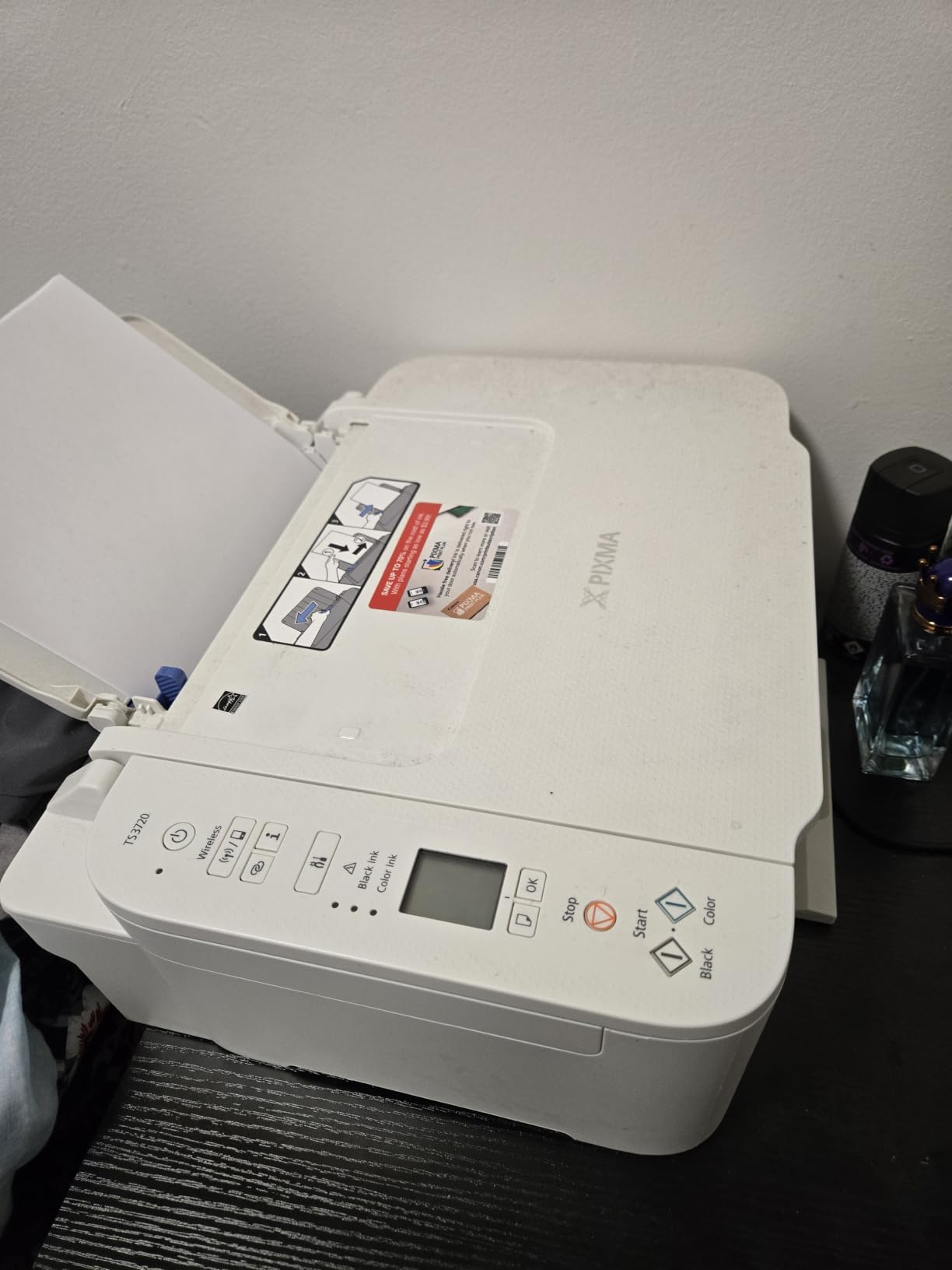
This is the rare budget printer where the manufacturer names Chromebook support on the box rather than leaving you to work it out. Canon lists Chromebook alongside AirPrint, Mopria and the Canon PRINT app, and the machine can be set up without a computer at all using its own panel. If the single biggest worry in your purchase is whether it will work, that removes the guesswork.
The dual-band 2.4 GHz and 5 GHz radio held a stable connection in our testing, which matters on modern routers that split the two bands onto different SSIDs. The 1.5 inch segment LCD handles basic job control, the body is a compact 8.7 pounds, and print, copy and scan all work. Photo output includes borderless 5 by 7 inch and square formats alongside envelopes and banners.
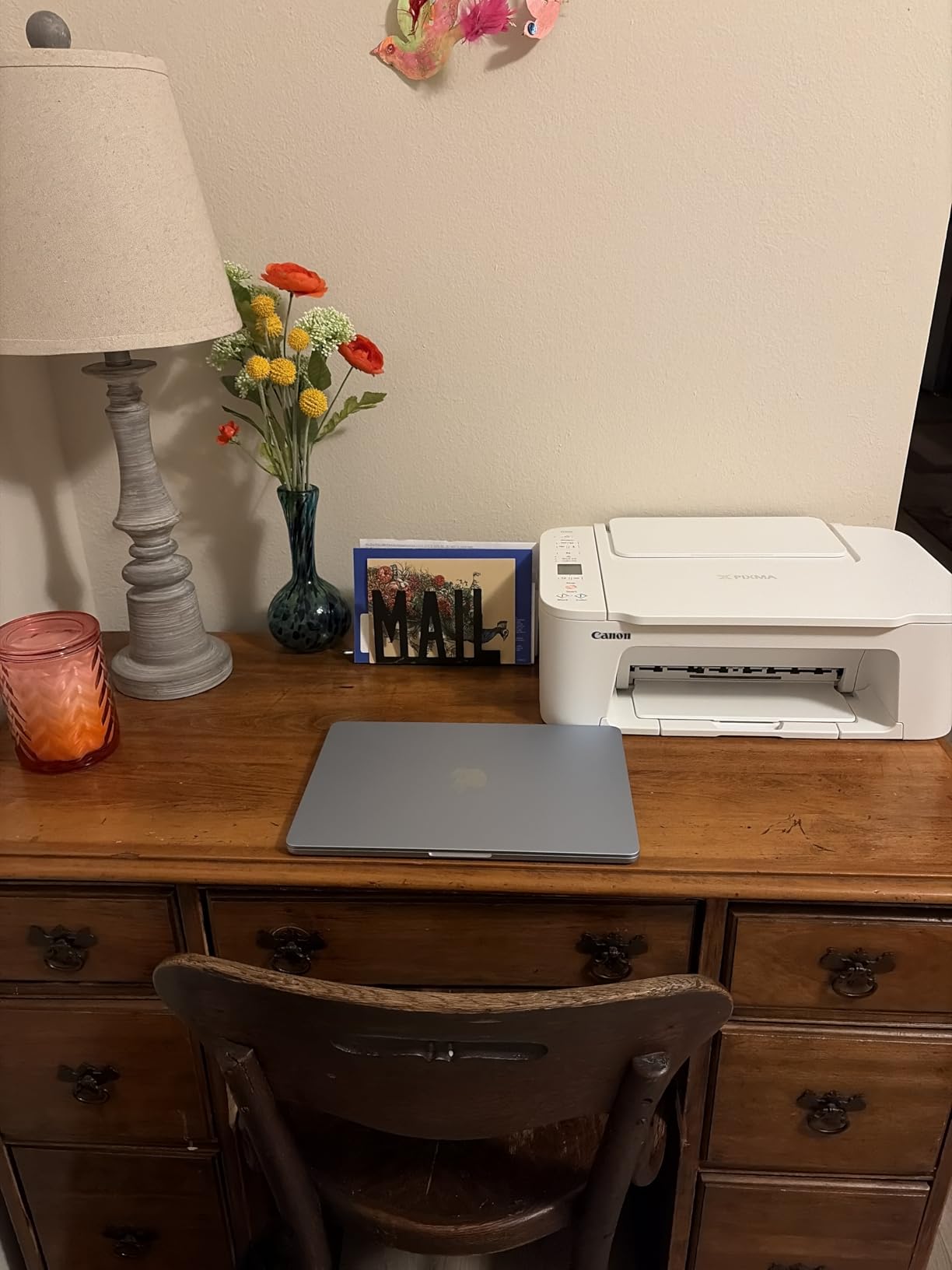
Be clear-eyed about what you are giving up. It is simplex only, the ink is a two-cartridge PG-275 and CL-276 setup that costs more per page than any tank printer here, and at 7.7 pages per minute black it is the slowest inkjet in the group. The 60-sheet tray is the smallest conventional paper tray we tested, which on a school term means refilling it more often than most people expect.
Against that, it is a small machine that does one job reliably. Reviewers consistently describe it as a solid basic home printer rather than a capable one, and the sixteen percent of one-star reviews all point at the limits of a two-cartridge simplex unit rather than at faults in the machine itself. We think that framing is right.
Best when setup confidence matters more than running cost
There is a specific buyer this suits: someone who has already had a printer fail to appear in ChromeOS and does not want to repeat that experience. Explicit Chromebook certification plus Mopria plus setup without a computer is about as low-risk a purchase as this category offers. The small footprint also means it fits where a larger all-in-one will not.
If you print fewer than a few hundred pages a month, the cartridge running cost is manageable and the simplicity is worth more than the per-page maths. The five-year outlook is where the tank machines pull ahead.
Where it will disappoint you
Anyone printing a full school term of double-sided work will be frustrated by simplex-only output and slow black speed. Colour-heavy users will feel the two-cartridge cost quickly, and the 60-sheet tray will need attention more often than any other model here. Borderless photos stop at 5 by 7 inch, so a poster does not happen.
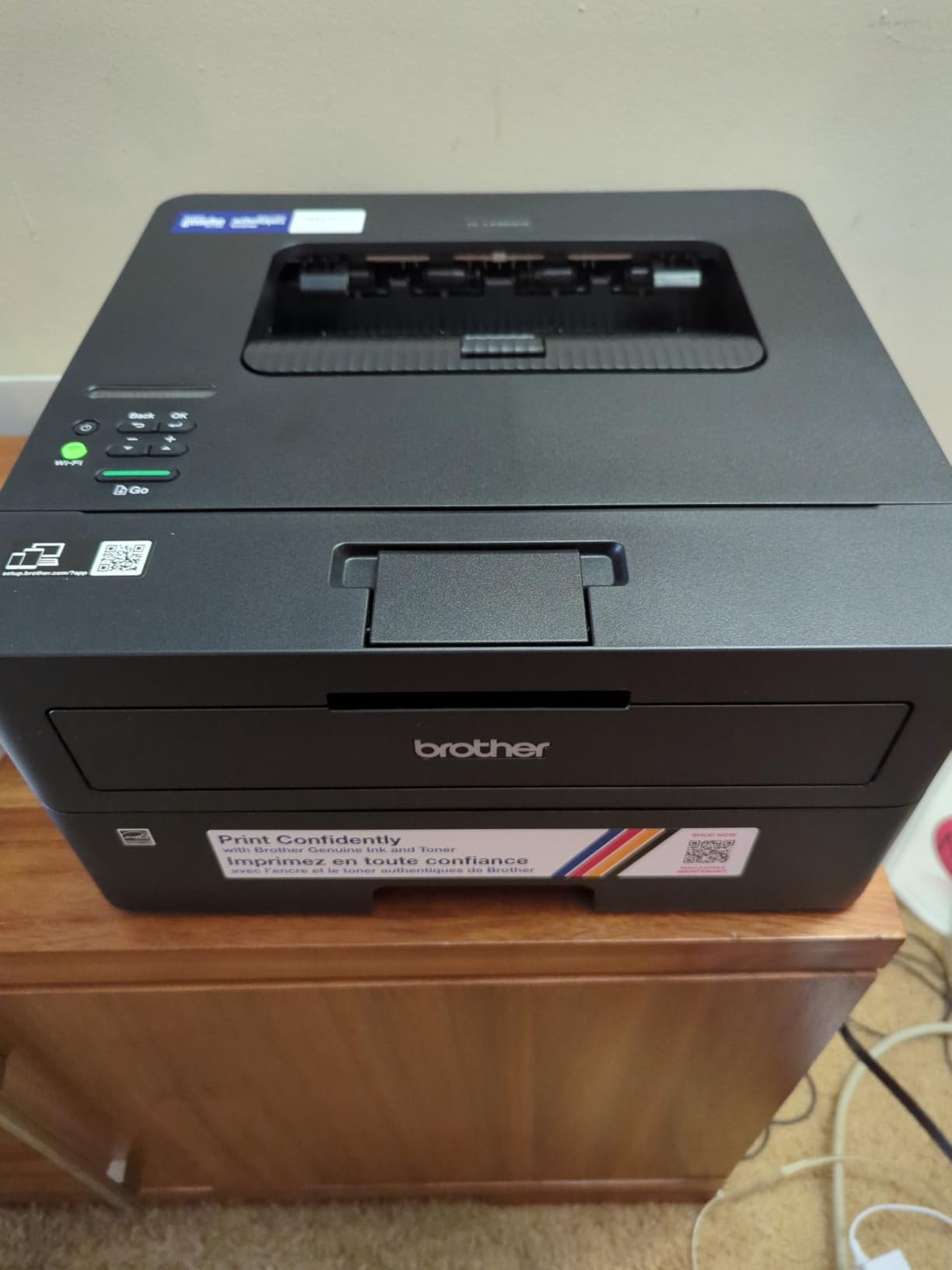
6. Brother HL-L2460DW – fastest monochrome text with a 250-sheet tray
- 36 ppm monochrome output with crisp text
- Automatic duplex saves time and paper
- 250-sheet tray plus manual feed slot
- Dual-band Wi-Fi plus Ethernet and USB
- TN830XL high-yield toner keeps cost per page low
- Print-only with no scanner or copier
- Monochrome only
- On-screen Wi-Fi setup is tedious with physical buttons
- Deep Sleep can drop it off mesh networks
- Refresh trial can generate page-overage charges
Everything about this machine is aimed at one job: putting black text on paper, quickly, without ink drying out between uses. Thirty-six pages per minute, an 8.5 second first page, automatic duplex and a 250-sheet main tray cover everything a text-heavy household needs. The manual feed slot handles envelopes and specialty media when the tray is full.
Connectivity is the most flexible in the group, with dual-band 2.4 and 5 GHz Wi-Fi, Ethernet and USB. It works with Windows, Mac and Linux, and phones can print through Brother Mobile Connect, but a Chromebook needs none of that. We added it in ChromeOS settings and printed without installing anything. The body is compact at 14.2 by 14 by 7.2 inches and weighs 15.6 pounds.
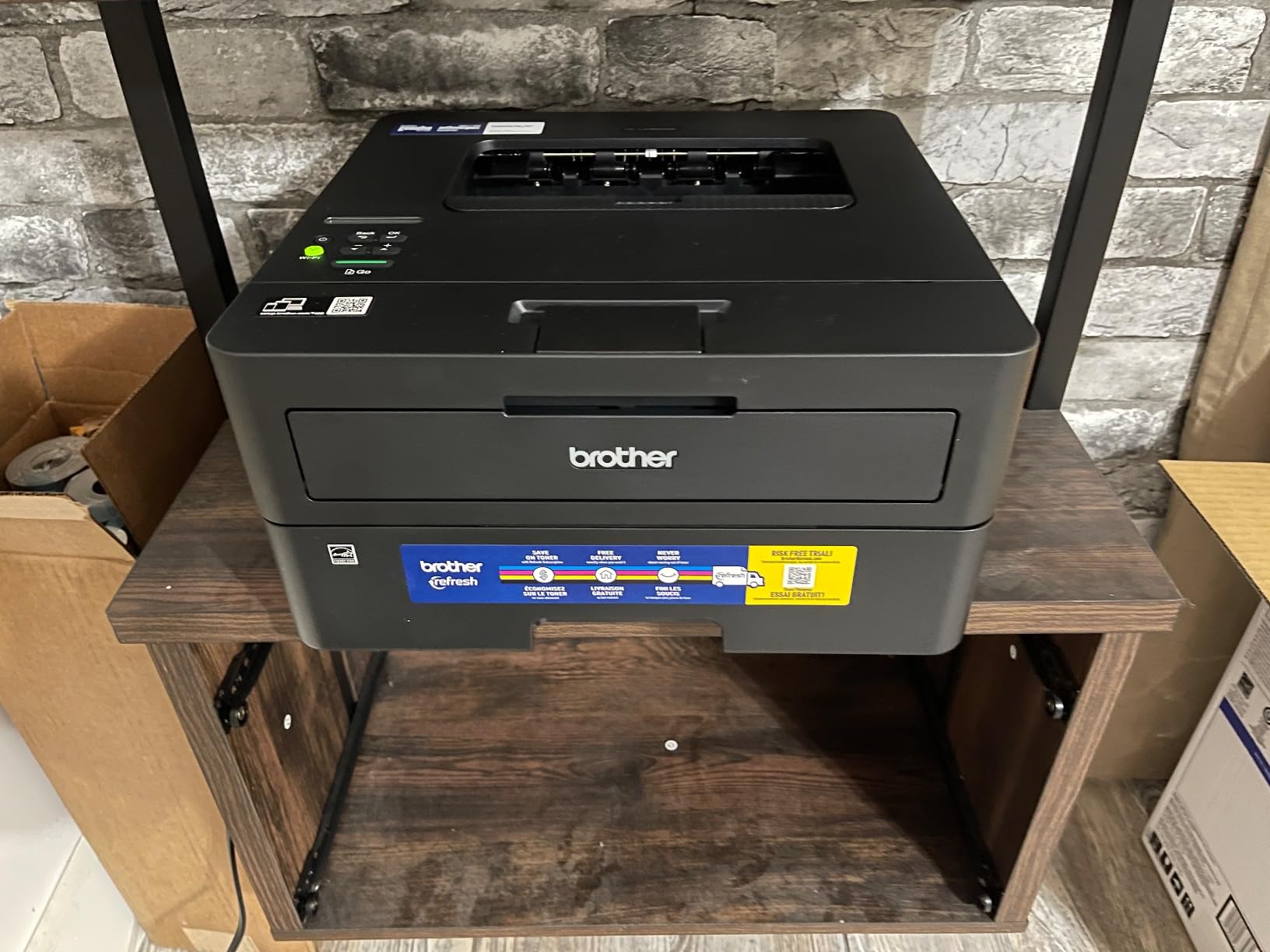
Two details deserve attention before you commit. The Wi-Fi setup runs from the printer’s own screen using a small set of physical buttons, and reviewers describe that process as tedious. Second, Deep Sleep mode is the single most reported network complaint in the reviews: on mesh and EERO-style routers the printer can disappear from the network after sitting idle, and you have to wake it before ChromeOS will see it again.
The Refresh EZ Print subscription trial is also the most-voted negative theme in the review set. Trial enrolment can lead to page-overage billing if you do not cancel, and nothing in ChromeOS warns you about it. Registering Brother’s app is where the prompt appears, and we recommend declining it unless you want a toner delivery contract.
Best when duplex and tray size do the heavy lifting
The difference between this and a cheaper laser is the combination of automatic duplex and a 250-sheet tray. Both mean a large project runs start to finish without a refill or a paper flip, and at 36 ppm the machine keeps pace with anything you send it. TN830XL high-yield toner is what makes that volume affordable over a year, and toner does not dry out in a cartridge between uses.
It is also the pick if your desk is tight but your volumes are not, since it is print-only and lighter than the Brother multifunction unit at 15.6 pounds. If you also need to scan or copy, the DCP-L2640DW runs at the same speed with a scanner and a feeder built in.
Where it will disappoint you
There is no scanner and no colour, so a single colour page cannot be produced at all. Wi-Fi configuration from the physical buttons is a genuine annoyance, and mesh-router owners should expect to troubleshoot a printer that vanishes after Deep Sleep. The trial subscription prompt is the most common source of billing complaints, and it appears during setup.
7. Brother HL-L2405W – the print-only laser with no app or account required
- Clean setup with no bloatware
- forced apps or account requirement
- Sharp monochrome output at 30 ppm
- Dual-band 2.4 and 5 GHz Wi-Fi plus USB
- 250-sheet tray with manual feed slot
- Toner easy to find and change
- Print-only with no scanner or copier
- Manual duplex only
- Wi-Fi setup can be slow and need manual SSID entry
- Deep sleep mode can drop it off mesh networks
- Blocks printing entirely when toner runs out
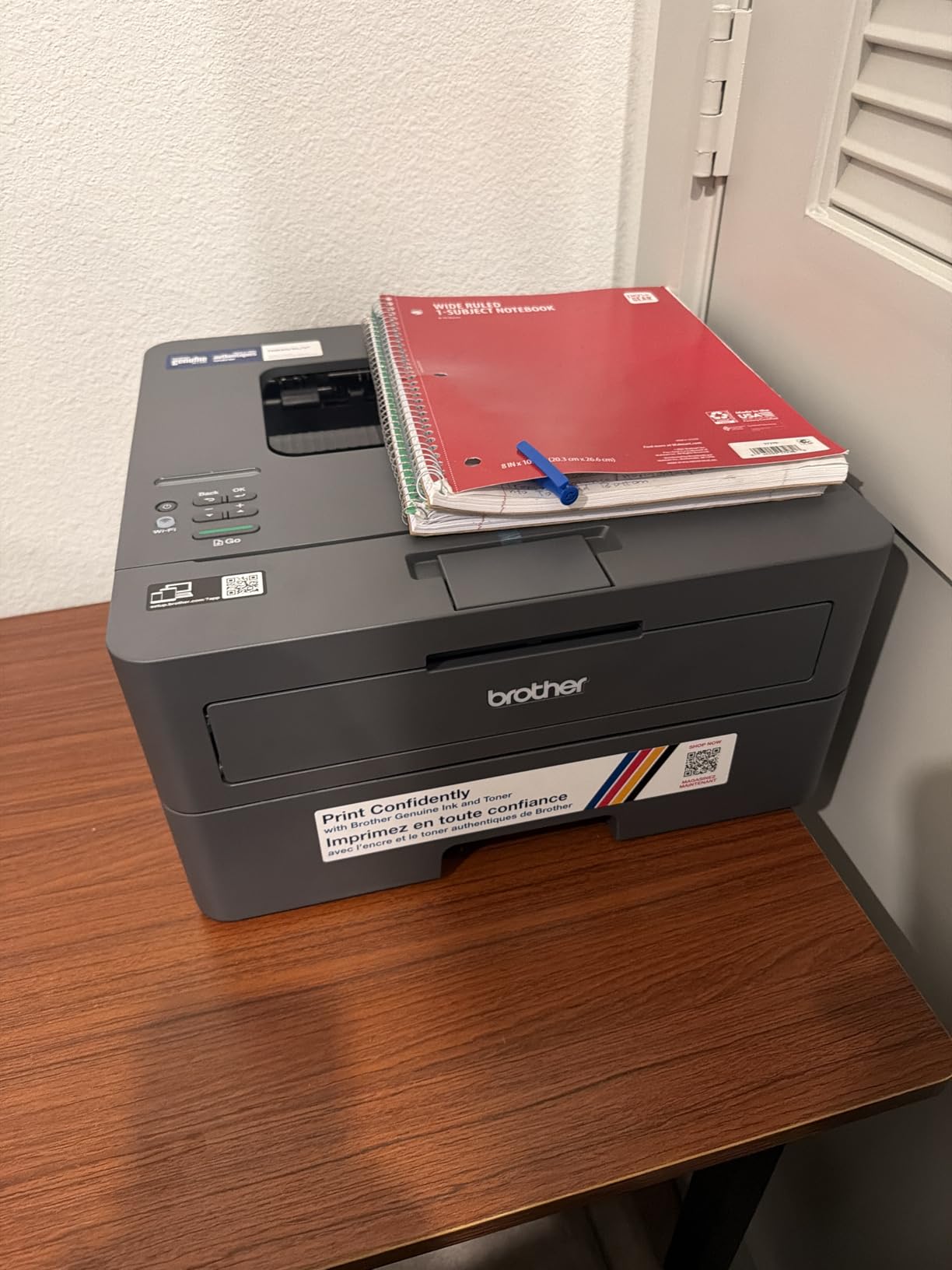
If your objection to printer setup is that it always ends with an account prompt, this is the cleanest machine on the list. Reviewers single out the absence of forced apps, terms acceptance and registration as the defining experience, and on a Chromebook that matters twice over because ChromeOS never needed the vendor software in the first place. We joined it to the network, searched in settings, and printed.
Output is 30 pages per minute with an 8.5 second first page at 1200 x 1200 dpi, and the 250-sheet tray plus manual feed slot is generous for a home. Dual-band 2.4 and 5 GHz Wi-Fi is supported alongside USB, and it works with Windows, Mac and Linux as well as phones through Brother Mobile Connect if you want that. The body matches the HL-L2460DW footprint at 14.2 by 14 by 7.2 inches.
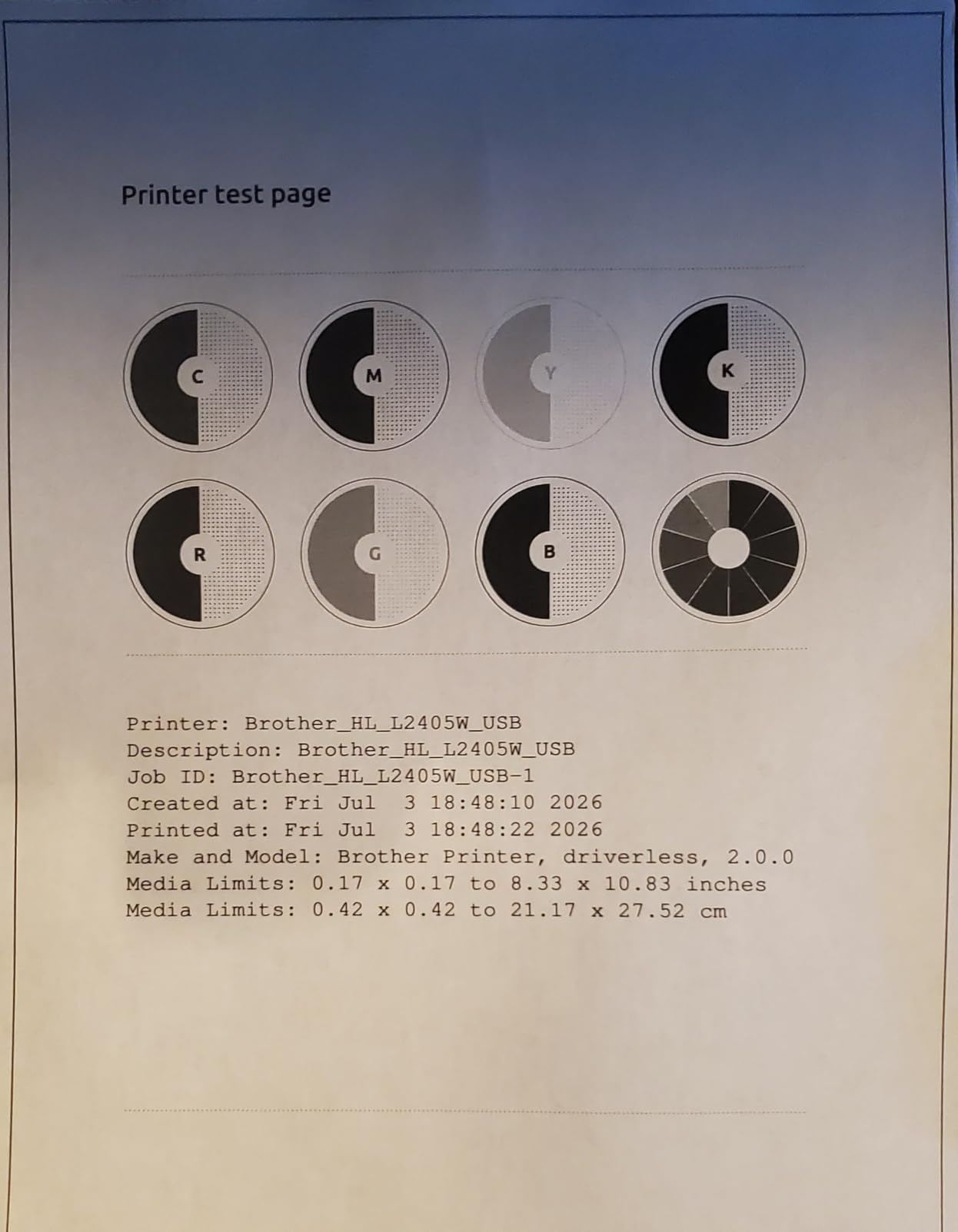
The difference from the L2460DW is duplex. This model is manual duplex only, which means the machine prints one side, you pull the stack, turn it and feed it back. It is manageable for the occasional two-page handout and genuinely painful for a 30-page assignment. We would not choose it over the automatic version for anything but a tight budget and a light workload.
Deep sleep mode is the other recurring theme, and it is a problem on mesh networks where the printer drops off until someone touches it. The sleep setting is not user-disableable, so some owners end up power-cycling the unit. On the toner side, the printer stops printing entirely when the cartridge empties, and toner save mode has to be reselected for each job rather than set as a default.
Best when setup friction is the deciding factor
There is real value in a printer that does not ask anything of you. For a school-issued or work-managed Chromebook, or for anyone who does not want to hand an email address to a manufacturer just to print a permission slip, that is a legitimate reason to pick this over a machine that nudges toward registration. The toner is easy to source, and third-party options exist if you would rather avoid genuine cartridges.
It is also the most forgiving of the Brother machines on network type, with dual-band support and a straightforward local USB fallback. Add the large tray, and it handles a busy term without much intervention.
Where it will disappoint you
Manual duplex is the main cost of this configuration and you will feel it on any document longer than two pages. There is no scanner, no colour and no automatic document feeder. Mesh-router users should also read the deep sleep complaint before buying, and the toner save mode needs reselecting every job.
8. Canon PIXMA TS6520 – compact color with automatic two-sided printing
Canon PIXMA TS6520 Wireless Color Inkjet Printer, Duplex Printing, Copier/Scanner, 1.42″ OLED Display, Compact, White
- Automatic two-sided printing saves paper and time
- 14 black and 9 color pages per minute is quick for a home inkjet
- Stable dual-band Wi-Fi
- 1.42 inch OLED display shows ink levels and status
- Borderless photos up to 8.5 by 11 inch
- Two-cartridge hybrid ink is pricier per page than tanks
- Maximum paper size is Letter only
- Single sheet tray limits bulk paper storage
- 15.4 pounds is heavy for a compact inkjet
This is the highest-rated printer in the group at 4.2, and the reason is that it combines two things that rarely appear together at this end of the market: automatic two-sided printing and a real status display. Most entry-level colour all-in-ones give you one or the other. The 1.42 inch monochrome OLED shows ink levels and job status, which removes most of the guesswork that plagues screenless models.
Speed is the other quiet strength. At 14 black and 9 colour pages per minute it is among the fastest inkjets here, well ahead of the 7 to 11 ppm cluster the tank and entry models sit in. Dual-band 2.4 and 5 GHz Wi-Fi held steady in our tests, and it prints from phones and tablets through Canon PRINT, AirPrint and Mopria, though a Chromebook needs none of those.
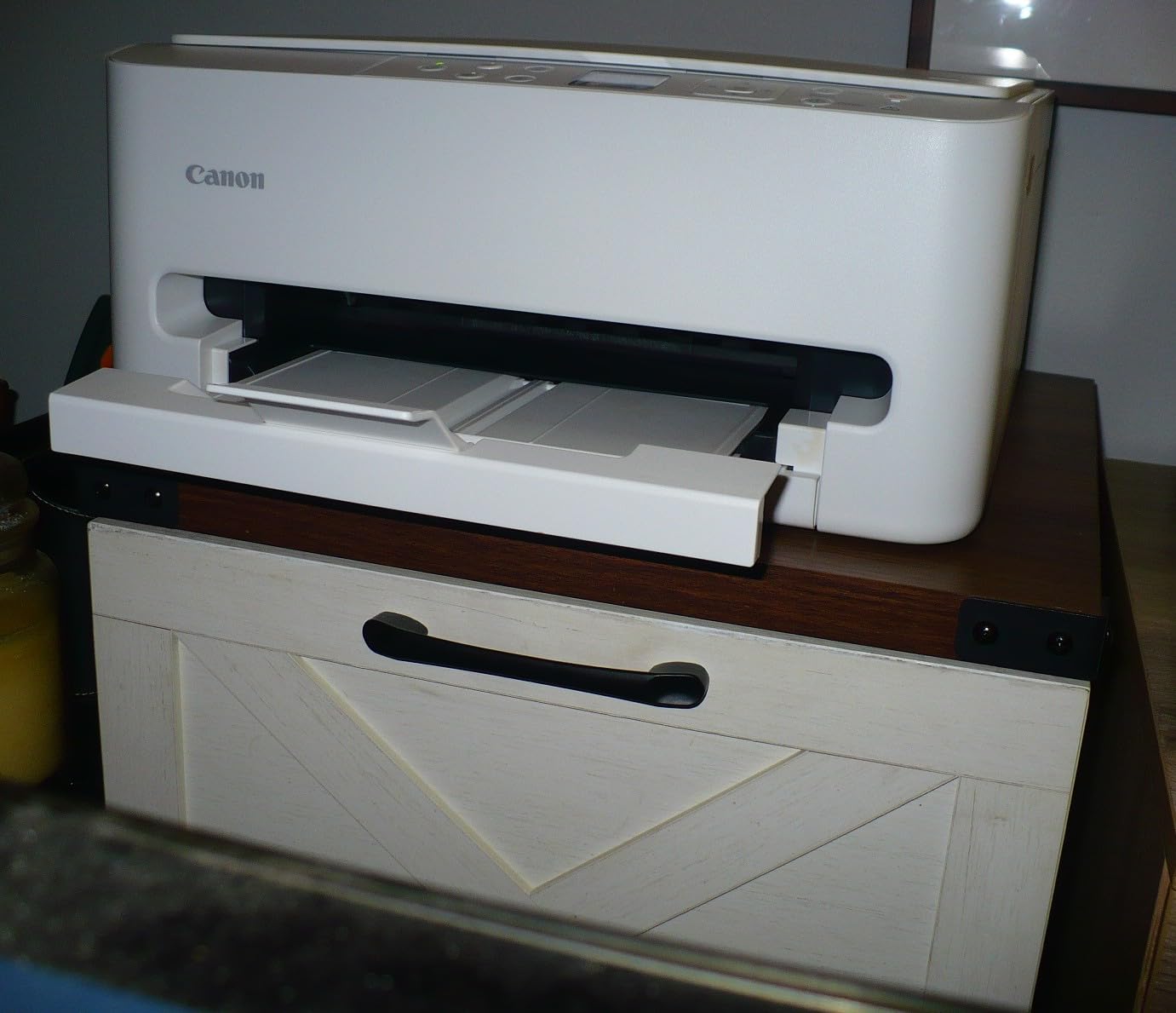
The ink is where the compromise sits. It uses a PG-295 pigment black tank and a CL-286 dye colour tank, a two-cartridge hybrid layout, so cost per page lands above every refillable tank on this list. Maximum paper size is Letter only, with no legal or A4 support, and the tray is listed as a single sheet capacity, which is a real limit for a family printing a term’s worth of paper.
At 15.4 pounds the body is heavier than most machines described as compact, and it does not sit as flat as the slimmer Canon models. Borderless output still reaches the full 8.5 by 11 inch sheet, which is unusual at this size and genuinely useful for a school project with a photo edge to the paper.
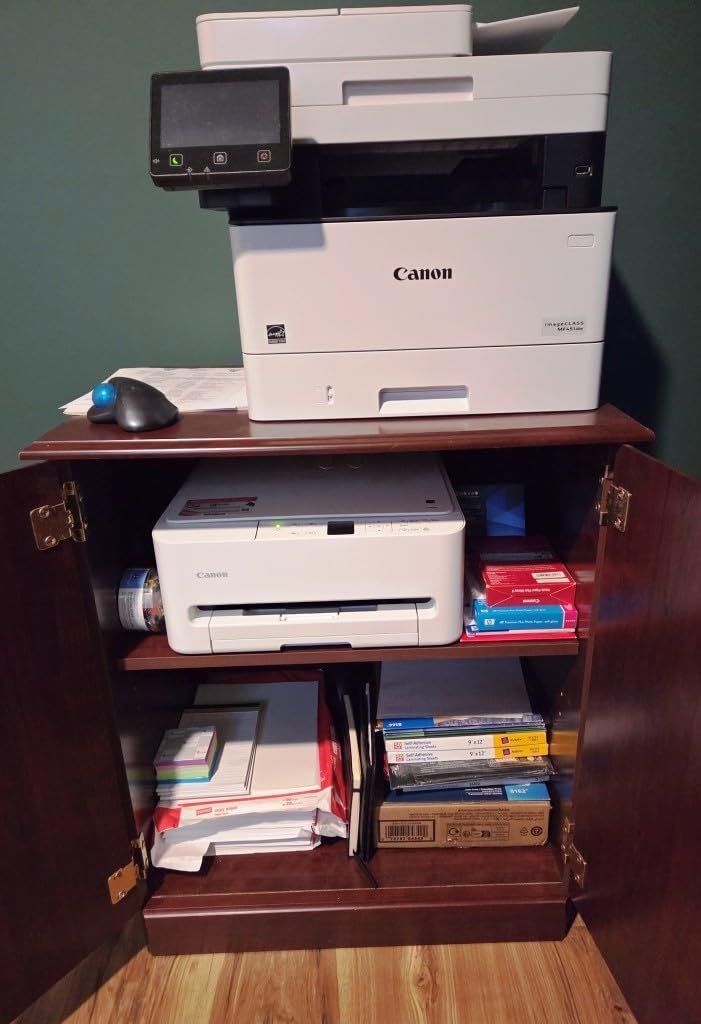
Best when duplex and colour speed matter in the same machine
Automatic duplex is the reason to stretch here if you cannot stretch to a tank printer. It turns a 20-page handout into a single 10-sheet job with no manual flipping, and at 14 ppm the machine finishes before you have refilled the coffee. The OLED display is the second reason, because seeing ink levels at a glance prevents the most common household ink failure.
Borderless printing to a full Letter sheet is the third. If your household produces anything that looks like a finished project rather than a worksheet, that capability is worth more than a faster monochrome laser would be.
Where it will disappoint you
Colour running cost is the honest drawback. Over a year of regular colour printing the cartridges will cost more than tank ink would, and the two-cartridge layout means heavy use of one colour can exhaust the tank sooner. Letter-only media rules out legal or A4 documents, and the single tray means frequent refills.
9. HP LaserJet MFP M140w – smallest monochrome laser with scan and copy
HP Laserjet MFP M140w Wireless Black & White Printer, Print, scan, Copy, Fast speeds, Easy Setup, Mobile Printing, Best-for-Small Teams
- Explicitly works with Chromebook plus AirPrint and Mopria
- 10.4 inch deep footprint is very compact
- Print scan and copy at 21 ppm
- ID card copy puts both sides on one sheet
- HP Smart app supports scan to cloud
- No automatic duplex
- 21 ppm is slower than competing Brother and Canon lasers
- Cartridge lockout without original HP chips
- 99-sheet capacity limits heavy runs
- Occasional wireless self-reset drops
When the problem is that nothing fits on the desk, this is the answer. The M140w is a monochrome laser that prints, scans and copies in a body only 10.4 inches deep, and HP markets it as the smallest laser printer in its class. At 21 pages per minute with an 8.3 second first page it handles a normal home workload, and toner never dries out in the drum.
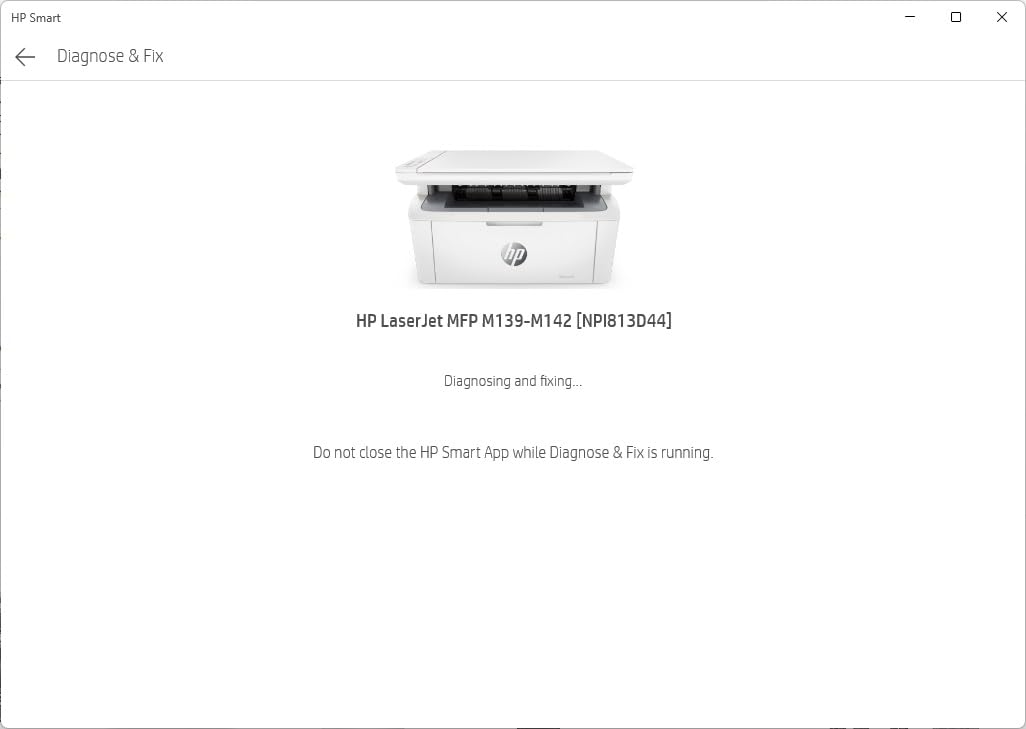
HP lists explicit Chromebook support alongside Microsoft, Mac, AirPrint and Android, and the controller is Mopria-certified, so ChromeOS finds it as soon as it joins the network. The ID card copy function puts both sides of a small document onto one sheet, which is a small thing that saves a surprising amount of paper when dealing with passes and receipts. HP Smart handles scan-to-cloud from a phone.
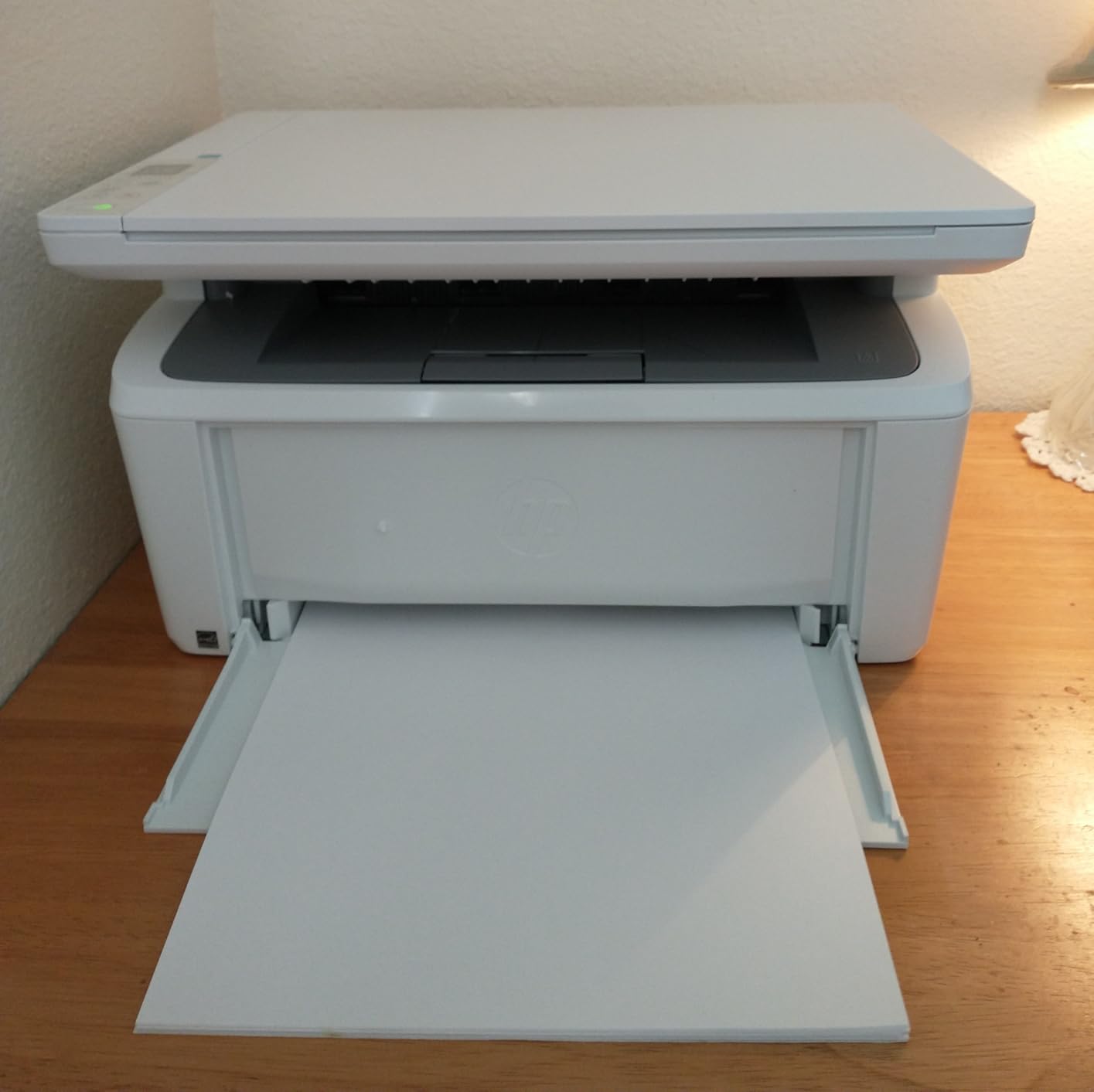
Speed and duplex are where it falls behind. There is no automatic duplex at all, and 21 ppm sits well below the 30 and 36 ppm the Brother lasers here manage, which you notice on anything over about 50 pages. Print resolution is 600 x 600 dpi, adequate for text and nothing more. The 99-sheet tray fills quickly on a busy run, and the seventeen percent of one-star reviews point at the same three things.
The cartridge situation deserves attention. HP locks out cartridges without original chips or circuitry, which removes the cheaper third-party option that Brother owners rely on. Occasional wireless self-reset connectivity drops also show up repeatedly in reviews, and reviewers note that HP Smart is required for useful scanning features, which undercuts the driver-free appeal if you are printing from a Chromebook.
Best when desk space is the binding constraint
There is no other monochrome laser here that is this shallow, and that single dimension decides whether the printer lives on your desk or in a cupboard. With scan and copy included, it also covers the school admin tasks of copying a worksheet or scanning a signed form without moving to another machine. The ID card copy shortcut is genuinely useful for that same workflow.
If your volume is light, the 21 ppm speed is more than adequate and the toner-versus-ink argument is one HP wins outright, because a laser drum sitting unused for a month is still ready to print.
Where it will disappoint you
No duplex means every multi-page document is a manual flip. It is the slowest laser here and the resolution is the lowest. The cartridge chip lockout removes your ability to buy cheaper supplies, the 99-sheet tray fills quickly, and if you rely on scanning you will need HP Smart rather than the native ChromeOS path.
10. Epson EcoTank ET-2980 – refillable tanks and automatic duplex in one compact body
Epson EcoTank ET-2980 Wireless Color All-in-One Supertank Printer – Black
- Up to 3 years of ink in the box covering roughly 6600 black and 5500 color pages
- Automatic duplex plus scan and copy in a compact body
- 15 ppm black and 8 ppm color
- No chip tracking and no forced ink subscription
- Epson Smart Panel app for setup and printing
- Scanner software is dated and scans are low quality
- Tiny hard-to-read screen with a very bright power LED
- Paper jams frequently during automatic duplex
- Photo output can smudge
- First-fill cycle takes about 11 minutes
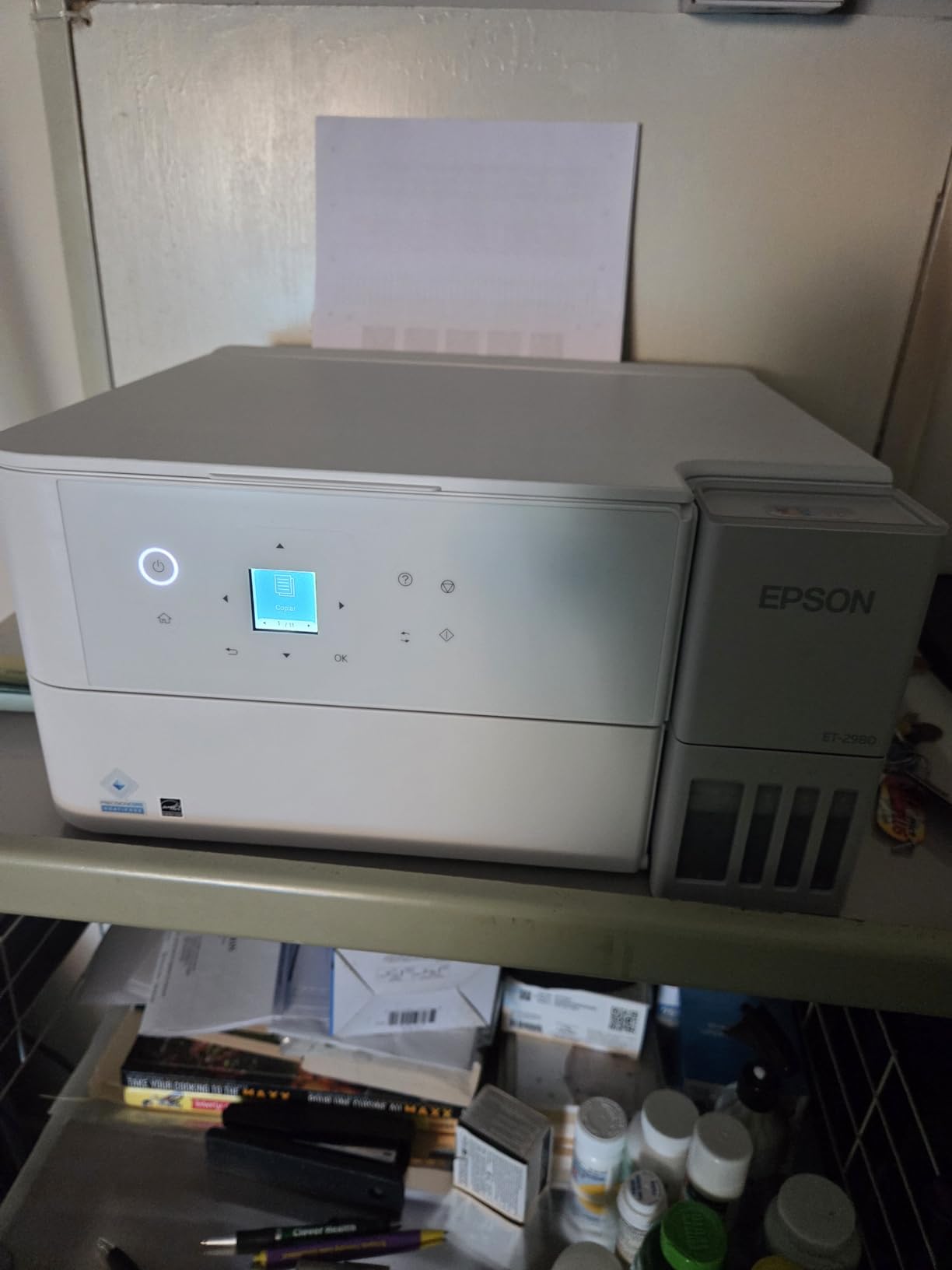
The ET-2980 is the only machine here that combines refillable tank economics with automatic duplex, and that combination is rare. It ships with up to three years of ink in the box, covering roughly 6,600 black and 5,500 colour pages, and there is no chip tracking on the bottles and no forced ink subscription. At 15 ppm black it is also the fastest inkjet in the group by a clear margin.
The body is compact at 13.7 by 14.8 by 7.4 inches and 11.5 pounds, and it includes scan and copy alongside printing. Wireless connection was consistent across multiple users in our testing, and the Epson Smart Panel phone app makes setup and printing straightforward. The EcoFit bottles refill without any chip conversation, which is a genuine change if you have been burned by subscription prompts.
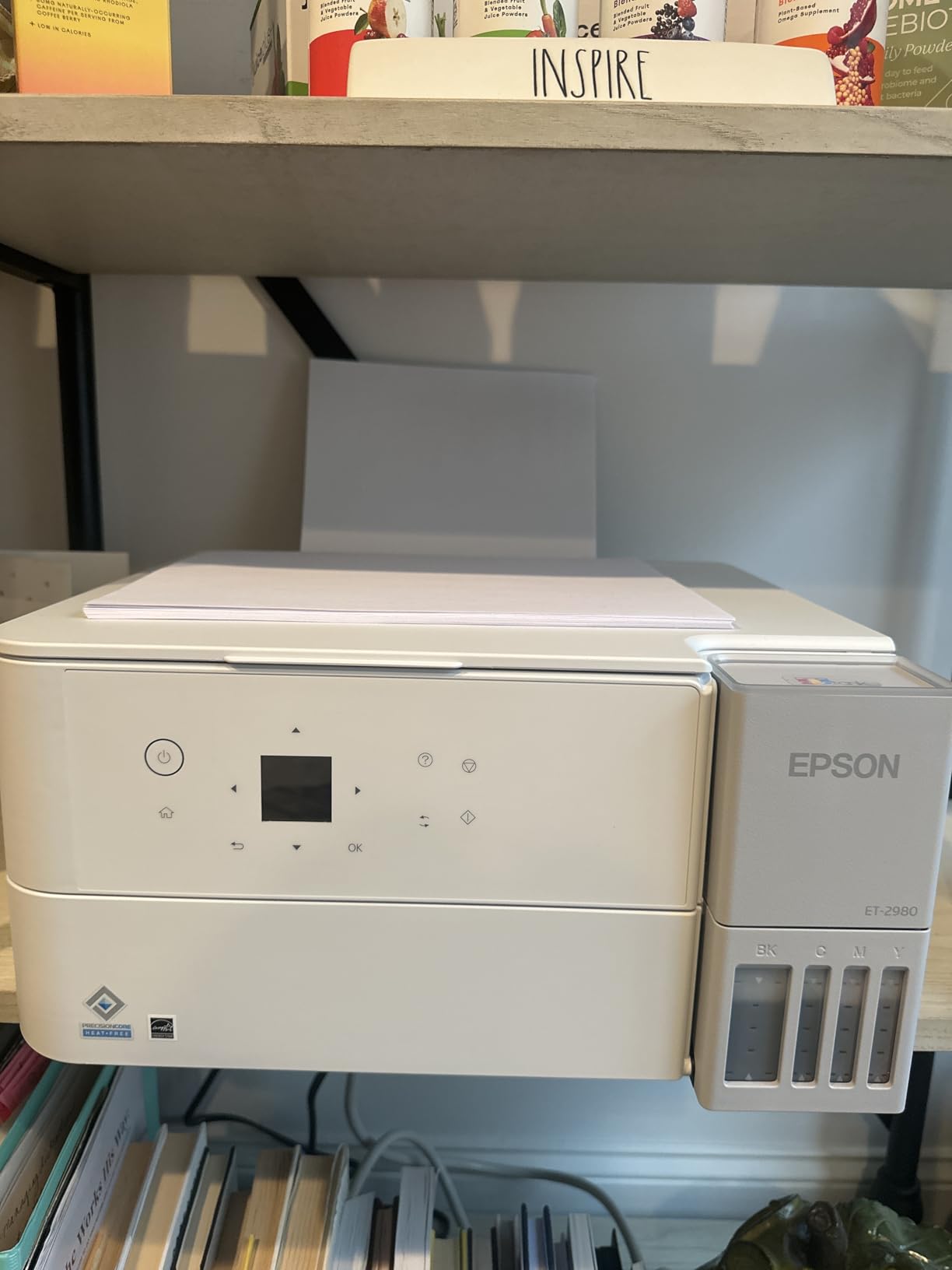
The trade-offs cluster around paper handling and the scanner. Paper jams are frequent during automatic duplex, and the scanner software is dated enough that scan quality disappoints, which is a real problem if you are digitising homework rather than just printing it. Photo output is weaker than the ET-2800’s and ink can rub off a fresh print, so a photo that needs handling right after printing is risky.
The on-device screen is small and hard to read with confusing icon buttons, and the power LED is bright enough to be distracting in a dark room. First fill takes about 11 minutes of initialisation before it will print, which catches people out. The output tray does not retract on its own, and some users report daily wireless drops and stubborn paper-mode settings, though that is a minority report against a much larger body of praise.
Best when you want tank running costs and duplex together
This is the answer to the question we get most often, which is how to stop buying cartridges without giving up two-sided printing. The ink economics are the tank economics, the duplex is automatic, and there is no chip and no subscription to opt out of. For a household printing double-sided worksheets several times a week, that combination removes the two biggest ongoing irritants at once.
The app is optional rather than required, which matters on a Chromebook where you would rather not install anything. It is also the only model here that does both, so if duplex and low ink cost are both non-negotiable, the list ends here.
Where it will disappoint you
Duplex jams are the most common mechanical complaint and they cluster on thicker paper. The scanner is the weak point on this machine, with dated software and low output quality. Photo prints can smudge, the screen is hard to read, and the eleven-minute first fill is an unpleasant surprise on day one.
What Makes a Printer Work With a Chromebook
ChromeOS prints without drivers, so compatibility comes down to one question: does the printer speak a protocol the Chromebook already understands? Three answers cover almost every modern wireless printer. IPP Everywhere is the industry standard for driverless printing across platforms, Mopria is the print service that Android and ChromeOS share, and Google’s own Works With Chromebook certification is a badge manufacturers print on the box when a model has been verified.
Any printer carrying at least one of those will appear in ChromeOS settings and print. Several on this list name all three explicitly, the Canon PIXMA TS3720 and the HP LaserJet MFP M140w among them, and those are the safest choices if setup simplicity is your priority. If a manufacturer says nothing at all, check for Mopria or IPP Everywhere on the specification sheet before you commit.
If your printing needs go beyond school and household documents into commercial labelling and shipping paperwork, the requirements change completely, and our guide to industrial label printers for shipping departments covers that side. For the home and school use case this article is built around, the driverless protocols above are the whole story.
Two connection myths are worth clearing up. Bluetooth is not a printing path on ChromeOS in any meaningful sense, so treat a Bluetooth-only printer as a red flag. And a USB cable is a fallback, not a feature: a Chromebook has USB-C, you need an adapter, and the print path through a USB connection adds friction that wireless avoids entirely.
The reason older printers that used to work now fail is Google Cloud Print. Google retired the service, and any printer that depended on a proprietary driver to reach a browser no longer has that bridge. A printer bought a decade ago and never updated may simply never show up, which is the single most common cause of the questions we get from readers replacing a machine that used to be fine.
How to Connect a Wireless Printer to a Chromebook in 6 Steps
Put both devices on the same network first, because discovery cannot happen until they are talking to the same router. Most printers ship on 2.4 GHz, so if your router splits the bands, join the Chromebook to the 2.4 GHz SSID for the setup and move the printer afterwards. After that it is a short sequence.
Power on the printer and connect it to your Wi-Fi network using its own panel, the WPS button, or the manufacturer’s app on a phone.
Confirm the Chromebook is on the same Wi-Fi network. Check the network name in the status area and make sure it matches the printer’s network exactly.
Open the quick settings panel on the Chromebook, click the time, then go to Settings, then Printers, then Add Printer.
Wait for the search to complete. Your printer should appear in the list of discovered devices, usually within a few seconds.
Click the printer name, wait for ChromeOS to add it automatically, and confirm the page count and paper size it detected.
Print a test page from the Print dialog. If it comes out, you are done. If the job sits in the queue, work through the troubleshooting steps below.
That test page matters more than it sounds. Printing one sheet inside the return window is the fastest way to discover a duplex problem, a paper-feed fault or a cartridge that arrived empty. Once a printer is working, failures are almost always the network or the queue rather than the hardware.
Troubleshooting: The Printer Appears but Will Not Print
This is the most common Chromebook printing problem and it follows a pattern. The printer shows up in the list, you send a job, and nothing comes out or the job sits in the queue indefinitely. Work through these six checks in order, because they separate a network problem from a queue problem from a policy problem, and most people start at the wrong end.
Cancel the stuck job from the print queue. Open the printer’s page in ChromeOS settings and delete the pending job before you send another one, because a blocked queue swallows everything behind it.
Restart both devices. Power the printer off at the wall for thirty seconds rather than just putting it to sleep, since Deep Sleep mode is the reported cause of many dropouts on mesh networks.
Check that the printer still has paper, no empty cartridge and no paper jam. Several models on this list stop printing entirely when the toner or ink runs out, and a monochrome laser in particular will refuse to print monochrome pages with an empty colour cartridge.
Confirm both devices are on the same network and on the same band. A 2.4 GHz-only printer will not join a 5 GHz network, and a guest network isolates devices from each other so discovery fails even though both have internet.
Use a cable to isolate the fault. Connect the printer to the Chromebook with a USB-C to USB-A adapter. If it prints over USB, the printer is healthy and the problem is your network; if it still fails, the problem is the printer or the print job.
Update the printer firmware, then check whether your Chromebook is managed. School and employer Chromebooks can have printer installation restricted by admin policy, in which case no amount of troubleshooting on your side will help. Ask the administrator before buying hardware.
Two extra notes. Printing without internet is possible as long as the Chromebook and printer share a local network, since the print job never leaves your house. And if you have a managed device, the policy question comes first, not last, because a blocked Add Printer button looks exactly like a hardware fault.
How to Choose a Printer for ChromeOS: 6 Decision Factors
Start with the ink system, because it decides your running cost for years rather than months. Cartridge inkjets charge the most per page and fail mid-job when a cartridge empties. Refillable tanks such as the Epson EcoTank and Canon MegaTank lines cut cost per page substantially and remove cartridges from the equation entirely, at the price of slower speed and the occasional manual duplex. Laser toner is the cheapest per page at volume and never dries out, but it is monochrome unless you buy a colour laser, which is a different product category.
Decide between automatic duplex and manual next. Automatic duplex halves paper use and removes the most annoying part of printing a document longer than one page. It appears on just four machines here: the Brother DCP-L2640DW, the Brother HL-L2460DW, the Epson EcoTank ET-2980 and, for colour, the Canon PIXMA TS6520. If you print more than a few pages a week, treat manual duplex as a real cost.
An automatic document feeder is the feature that changes scanning and copying workflows. The Brother DCP-L2640DW is the only unit here with a 50-page ADF, and for a parent copying a packet of worksheets it removes twenty trips to the flatbed. Flatbed-only machines are fine if you scan a page at a time.
Look at the Wi-Fi band support. Dual-band 2.4 and 5 GHz routers are now standard, and a 2.4 GHz-only printer can struggle to appear on a network that steers devices between bands. Several models here list dual-band support outright, and the two Brother machines with an Ethernet port give you a wired fallback.
Paper capacity is a term-by-term consideration rather than a spec-sheet one. A 60-sheet tray means refilling roughly once a week in a busy household, while a 250-sheet tray covers a full school term. If your printer will not be sitting next to you, the smaller tray is the feature you will notice most.
Finally, decide between an all-in-one and a print-only machine. An all-in-one gives you a flatbed scanner and copier, which matters for a Chromebook household because the laptop has no built-in scanner. A print-only laser is smaller, cheaper per page and more reliable for pure text. We tested both kinds here and both are legitimate answers, just to different questions.
Frequently Asked Questions
Do Chromebooks need special printers?
No. ChromeOS prints without installing drivers, so almost any modern wireless printer works. What matters is whether the printer supports IPP Everywhere, Mopria, or carries Google’s Works With Chromebook certification. Join the printer and the Chromebook to the same Wi-Fi network, then add it through Settings, Printers, Add Printer.
Can any printer work with a Chromebook?
Almost, but not literally any. A Bluetooth-only printer will not work, and a printer that depends on proprietary driver software or was set up before Google Cloud Print was retired often never appears in the add-printer list. Any Wi-Fi printer with Mopria or IPP Everywhere support, or one listed as Works With Chromebook, will connect and print with no setup software.
Do HP printers work with Chromebooks?
Yes. HP lists Chromebook support on current models and marks them Mopria-certified, which is the protocol ChromeOS uses for driverless printing. The LaserJet MFP M140w names Chromebook support alongside AirPrint and Android. One caveat worth knowing: HP cartridge-chip lockout means you are limited to genuine cartridges, and HP Smart is needed for the full scanning feature set.
What are the most common printer issues with Chromebooks?
The most common issue is a printer that appears in the add-printer list but whose jobs sit in the queue and never print. Behind that come 2.4 GHz-only printers that will not join a 5 GHz network, guest networks that block device-to-device discovery, and paper jams or empty cartridges that halt the queue. A USB connection is the fastest way to tell a network fault from a printer fault.
How do I print from a Chromebook without internet?
You can, as long as the Chromebook and the printer are on the same local Wi-Fi network. The print job travels directly between your two devices and never touches the internet. The failure case is a guest network, which isolates devices from each other, so both must be on the main network even if that network has no internet access itself.
Why won’t my old printer work anymore?
Google Cloud Print was retired, and that service was the bridge that let older printers work from a browser. Printers that relied on a proprietary driver to connect now have no way to reach ChromeOS, so they never appear in the add-printer list. If a printer that used to work suddenly disappears, a firmware change or the Cloud Print retirement is the usual reason rather than a hardware failure.
Which printer has the cheapest ink cartridges?
The printers with the lowest cost per page are the refillable tank models, not the cartridge ones. The Epson EcoTank ET-2800 covers up to 4,500 black and 7,500 color pages per bottle set, the Epson ET-2980 covers roughly 6,600 black and 5,500 color, and the Canon MegaTank G3270 covers 6,000 black and 7,700 color. Brother laser toner is cheaper still at high volume if you only need black and white.
What printer does not take ink cartridges?
The EcoTank models from Epson and the MegaTank models from Canon use refillable ink bottles instead of cartridges. The Epson EcoTank ET-2800, ET-2400 and ET-2980 and the Canon MegaTank G3270 all work this way. A bottle set is the equivalent of roughly 80 to 90 individual cartridges, and the Epson bottles carry no chip, so there is no forced subscription attached.
Final Recommendations
For most Chromebook households the Epson EcoTank ET-2800 is the machine to buy: driver-free pairing, two years of ink in the box, and print, scan and copy in one compact body at a running cost that will not surprise you. If colour volume and media flexibility matter more than footprint, the Canon MegaTank G3270 gives you more pages per ink set and borderless output. If you print double-sided black text by the ream, the Brother DCP-L2640DW is the only pick here with automatic duplex, a 50-page feeder and 36 ppm speed, and the Brother HL-L2460DW is the same engine without the scanner.
Colour with automatic duplex and a small footprint is the Canon PIXMA TS6520. Tank economics plus automatic duplex in one body is the Epson EcoTank ET-2980. Space-constrained dorm desks point to the HP LaserJet MFP M140w, and a first printer where setup confidence is the priority is the Canon PIXMA TS3720, the only entry unit on this list that names Chromebook support out of the box.
Whichever you pick, test a page inside the return window and check the network band before you commit. Our full rundown of the best wireless printers for Chromebooks is current for 2026, and the compatibility picture changes with every firmware release, so verify the Works With Chromebook badge on the box rather than trusting a listing.